
 admin
admin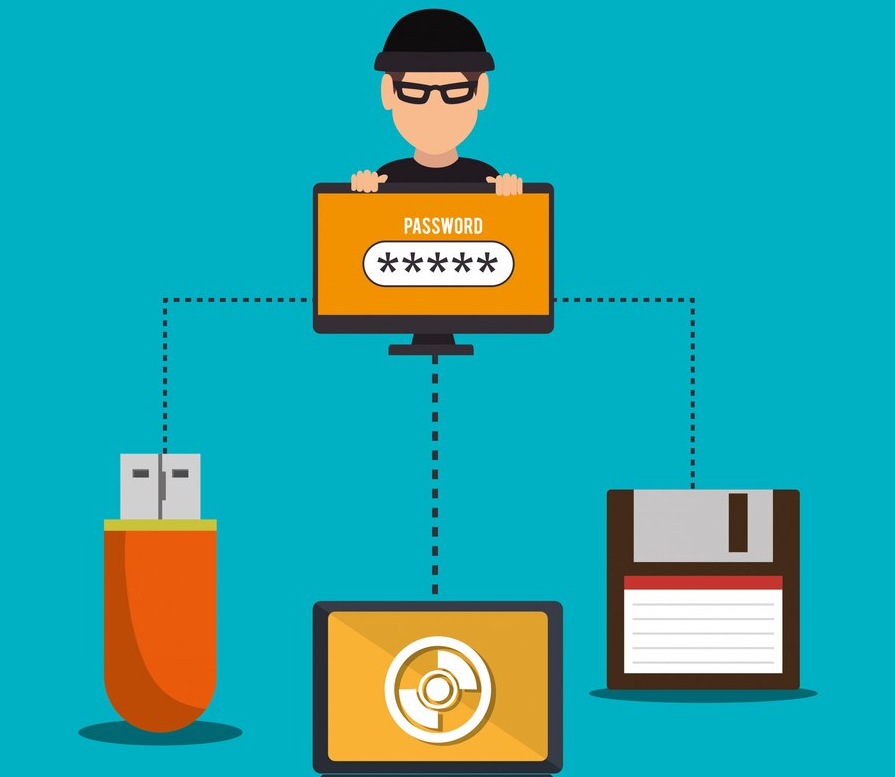
How To Know If A Storage Device Has Virus
How To Know If Your Storage Device Has Been Infected With Virus
In an era where our digital lives are intricately woven into various storage devices, the threat of viruses looms ever-present. This comprehensive guide is designed to empower users to recognize the signs of a virus in various storage devices—Hard Drives, USB Drives, Floppy Diskettes, Magnetic Strips, Flash Memory, Optical Storage Devices, CDs, and SD Cards. Discover effective detection methods and solutions to safeguard your digital archive.
Section 1: Signs of Virus Infection
1. Unexplained Data Corruption:
- Symptoms: Unexpected alterations or corruption of files.
- Detection Method: Regularly check the integrity of your stored files and be wary of unexplained data corruption.
2. Slow Access and Performance:
- Symptoms: Sluggish response times and reduced overall device performance.
- Detection Method: Monitor the speed of accessing files and the overall performance of your storage device.
3. Unexpected Pop-ups or Advertisements:
- Symptoms: Intrusive pop-ups or ads appear when accessing files.
- Detection Method: Observe any unexpected content that may indicate a virus attempting to display unwanted advertisements.
Section 2: Anomalies in File Structure
1. Hidden or Missing Files:
- Symptoms: Files are hidden or inexplicably missing.
- Detection Method: Regularly check your file structure and investigate any discrepancies.
2. Unusual File Extensions:
- Symptoms: Unfamiliar or odd file extensions.
- Detection Method: Scrutinize file extensions and identify any that deviate from the norm.
3. Recurring Error Messages:
- Symptoms: Frequent error messages, especially during file access.
- Detection Method: Pay attention to recurring error messages, as they may signal a virus interfering with file operations.
Section 3: Behavioral Cues on External Devices
1. Autorun.inf Presence:
- Symptoms: Presence of “autorun.inf” files in the root directory.
- Detection Method: Check for the existence of “autorun.inf” files, especially on external devices like USB drives.
2. Changes in Free Space:
- Symptoms: Sudden and unexplained changes in available free space.
- Detection Method: Regularly monitor free space on your storage device and investigate unexpected fluctuations.
3. Unusual Activity on Connected Systems:
- Symptoms: Unexpected processes or network connections on systems connected to the storage device.
- Detection Method: Keep an eye on connected systems for any unusual activities that may indicate virus activity.
Section 4: Proactive Detection Methods and Solutions
1. Regularly Update Antivirus Software:
- Solution: Keep antivirus software up-to-date to ensure the latest virus definitions are in use.
2. Run Periodic Scans:
- Solution: Conduct regular scans of your storage devices using antivirus software to detect and eliminate potential threats.
3. Use Write Protection on External Devices:
- Solution: Enable write protection on external devices to prevent viruses from modifying or infecting files.
4. Avoid Untrusted Sources:
- Solution: Exercise caution when using storage devices from untrusted sources to reduce the risk of virus transmission.
5. Backup Critical Data:
- Solution: Regularly back up crucial data on secure storage to facilitate recovery in case of a virus infection.
Conclusion: Strengthening Your Digital Armor
Detecting and addressing viruses in storage devices is a vital aspect of maintaining a secure digital environment. By adopting vigilant monitoring practices, regularly updating antivirus software, and implementing proactive solutions, you fortify your digital archive against potential threats. Remember, a well-informed and proactive approach is paramount in preserving the integrity of your data across diverse storage mediums. Stay vigilant, stay secure.
Discovering a virus in your storage device is a concerning situation, but taking immediate and comprehensive action can mitigate potential damage. Here’s a guide on thorough solutions after detecting a virus in various storage devices such as Hard Drives, USB Drives, Floppy Diskettes, Magnetic Strips, Flash Memory, Optical Storage Devices, CDs, and SD Cards.
Addressing a Confirmed Virus Infection: Comprehensive Solutions for Storage Devices
1. Isolate and Disconnect:
- Immediately disconnect the infected storage device from your computer or any other connected device. This prevents the virus from spreading further.
2. Run Full Antivirus Scan:
- Conduct a comprehensive antivirus scan on the infected storage device. Ensure your antivirus software is updated to the latest definitions for the most effective detection and removal.
3. Quarantine or Delete Infected Files:
- Follow the recommendations of your antivirus software to quarantine or delete identified infected files. Quarantining isolates the files, while deletion removes the threat.
4. Remove Autorun.inf (for External Devices):
- For external devices like USB drives, check for and remove any “autorun.inf” files from the root directory. These files may facilitate the automatic execution of the virus.
5. Restore Clean Backup (if available):
- If you have a clean and recent data backup, restore it to the storage device. Ensure the backup is free from viruses before initiating the restoration.
6. Update Operating System and Software:
- Ensure your computer’s operating system and all relevant software are up-to-date. Updates often include security patches that fortify your system against known vulnerabilities.
7. Change Passwords:
- Change passwords for your accounts, especially those accessed through the infected storage device. Use strong, unique passwords to enhance security.
8. Enable Write Protection (for External Devices):
- If your storage device supports it, enable write protection. This prevents any further modifications or additions to the content on the device.
9. Reformatting (if Necessary):
- In severe cases, consider reformatting the infected storage device. This wipes all data and can be an effective solution, but it should be done cautiously as it erases all content.
10. Seek Professional Assistance:
- If the virus proves resistant or if you are uncertain about your ability to handle the situation, seek professional assistance. Cybersecurity professionals can provide expert analysis and solutions.
11. Educate and Raise Awareness:
- Share your experience and the lessons learned with colleagues, friends, and family. Emphasize the importance of cybersecurity practices to prevent future infections.
12. Install Additional Security Measures:
- Consider installing additional security measures, such as intrusion detection systems or enhanced firewall settings, to fortify your system against future threats.
13. Regular Backups:
- Establish a routine for regular backups of your data. This ensures that, in case of future infections, you have a recent and clean backup to rely on.
14. Monitor for Unusual Activity:
- Keep a close eye on your system and the infected storage device for any unusual activities or signs of potential reinfection. Promptly address any anomalies.
15. Report to Antivirus Provider:
- If your antivirus software identified the virus, report the incident to the software provider. This contributes to the improvement of virus databases and enhances overall cybersecurity.
Cybersecurity Tips and Advice for Detecting and Preventing Storage Device Viruses
Storage devices such as USB flash drives, external hard drives, memory cards, and SSDs provide convenient ways to transfer and back up files. However, they can also become carriers for malware, viruses, worms, ransomware, and other malicious software. Knowing how to recognize the warning signs of an infected storage device is essential for protecting your computer, files, and sensitive information.


Practical Scenario: Infected USB Flash Drive
Imagine borrowing a USB flash drive from a friend to copy some documents. After plugging it into your computer, strange pop-up windows begin appearing, files start disappearing, and your antivirus software generates security alerts.
Soon afterward:
- Your computer becomes unusually slow.
- Hidden files and folders appear.
- Unknown shortcuts replace your original files.
- Malware spreads to other connected devices.
This is a common example of how infected storage devices can compromise computer systems and spread malicious software.
Common Signs That a Storage Device Has a Virus
⚠ Unusual Pop-Ups and Error Messages
Frequent pop-ups, warning messages, or unexpected system behavior may indicate malware activity.
📂 Missing or Hidden Files
Viruses often hide, delete, or replace files with malicious shortcuts.
Signs include:
- Files disappearing unexpectedly.
- Folders becoming hidden.
- Unknown files appearing.
🐌 Slow System Performance
Malware running in the background can consume system resources, causing:
- Slow startup times.
- Delayed file access.
- Reduced computer performance.
🔗 Shortcut Virus Infection
A common USB malware replaces folders with shortcuts that execute malicious code when opened.
🔒 Files Suddenly Become Encrypted
Ransomware may encrypt files and demand payment for their release.
🛑 Antivirus Security Alerts
Modern antivirus programs may detect:
- Trojans.
- Worms.
- Spyware.
- Ransomware.
- Malicious scripts.
📈 Unusual Disk Activity
Continuous reading or writing activity, even when the device is idle, may indicate hidden malware processes.
Immediate Steps to Take If a Storage Device Is Infected
🔌 Disconnect the Device
Safely remove the storage device to prevent malware from spreading to other systems.
🛡 Perform a Full Antivirus Scan
Use reputable antivirus software to scan:
- USB flash drives.
- External hard drives.
- Memory cards.
- SSDs.
🚫 Avoid Opening Suspicious Files
Do not execute:
- Unknown applications.
- Shortcut files.
- Suspicious documents.
- Executable files from untrusted sources.
💾 Back Up Important Data
If possible, safely back up essential files before attempting malware removal.
🔄 Format the Storage Device
If malware persists, formatting the device may remove infections. Ensure important files are backed up first.
🖥 Scan Your Entire Computer
Malware from removable devices can spread to:
- Operating systems.
- Browsers.
- Applications.
- Network shares.
Conduct a full system scan to detect additional threats.
Additional Cybersecurity Tips
✅ Disable AutoRun and AutoPlay
These features can automatically execute malicious files when a device is connected.
✅ Keep Antivirus Software Updated
Updated virus definitions improve malware detection capabilities.
✅ Avoid Unknown USB Devices
Never connect storage devices from unknown or untrusted sources.
✅ Use Write Protection When Possible
Write-protected devices help prevent unauthorized modifications.
✅ Scan Devices Before Opening Files
Always perform a malware scan before accessing files on removable media.
✅ Keep Operating Systems Updated
Security updates help defend against vulnerabilities exploited by malware.
Useful Cybersecurity Resources
🇺🇸 Cybersecurity and Infrastructure Security Agency (CISA)
Website:
Provides cybersecurity best practices and malware prevention guidance.
🌐 VirusTotal
Website:
Analyze suspicious files and URLs using multiple antivirus engines.
🇺🇸 National Institute of Standards and Technology (NIST)
Website:
Offers cybersecurity frameworks and malware defense recommendations.
🌐 Microsoft Security
Website:
https://www.microsoft.com/security
Provides malware removal guidance and Windows security resources.
🌐 Malwarebytes
Website:
Offers anti-malware solutions and educational resources.
Final Thoughts
Storage devices remain one of the most common ways malware spreads between computers and networks. Viruses, worms, ransomware, and shortcut malware can compromise files, disrupt operations, and expose sensitive information.
Fortunately, recognizing warning signs such as unusual behavior, hidden files, antivirus alerts, and slow system performance can help you detect infections early and prevent serious damage.
By practicing good cybersecurity habits, scanning removable media regularly, keeping software updated, and using trusted security tools, individuals and organizations can significantly reduce the risk of malware infections originating from storage devices.
Remember, prevention is always easier and less costly than recovering from a successful malware attack.
Helpful External Resources
- VirusTotal — https://www.virustotal.com
- CISA Cybersecurity Resources — https://www.cisa.gov
- Microsoft Security — https://www.microsoft.com/security
- Malwarebytes — https://www.malwarebytes.com
- NIST Cybersecurity Framework — https://www.nist.gov
By diligently implementing these comprehensive solutions, you not only address the current virus infection but also strengthen your defenses against future threats. Cybersecurity is an ongoing effort, and a proactive approach is essential to maintaining a secure digital environment.
Follow Us
Stay connected with us on social media to receive updates on our latest posts.
Follow us on: Facebook | Instagram



)
)